
Snap. Mark. Drag
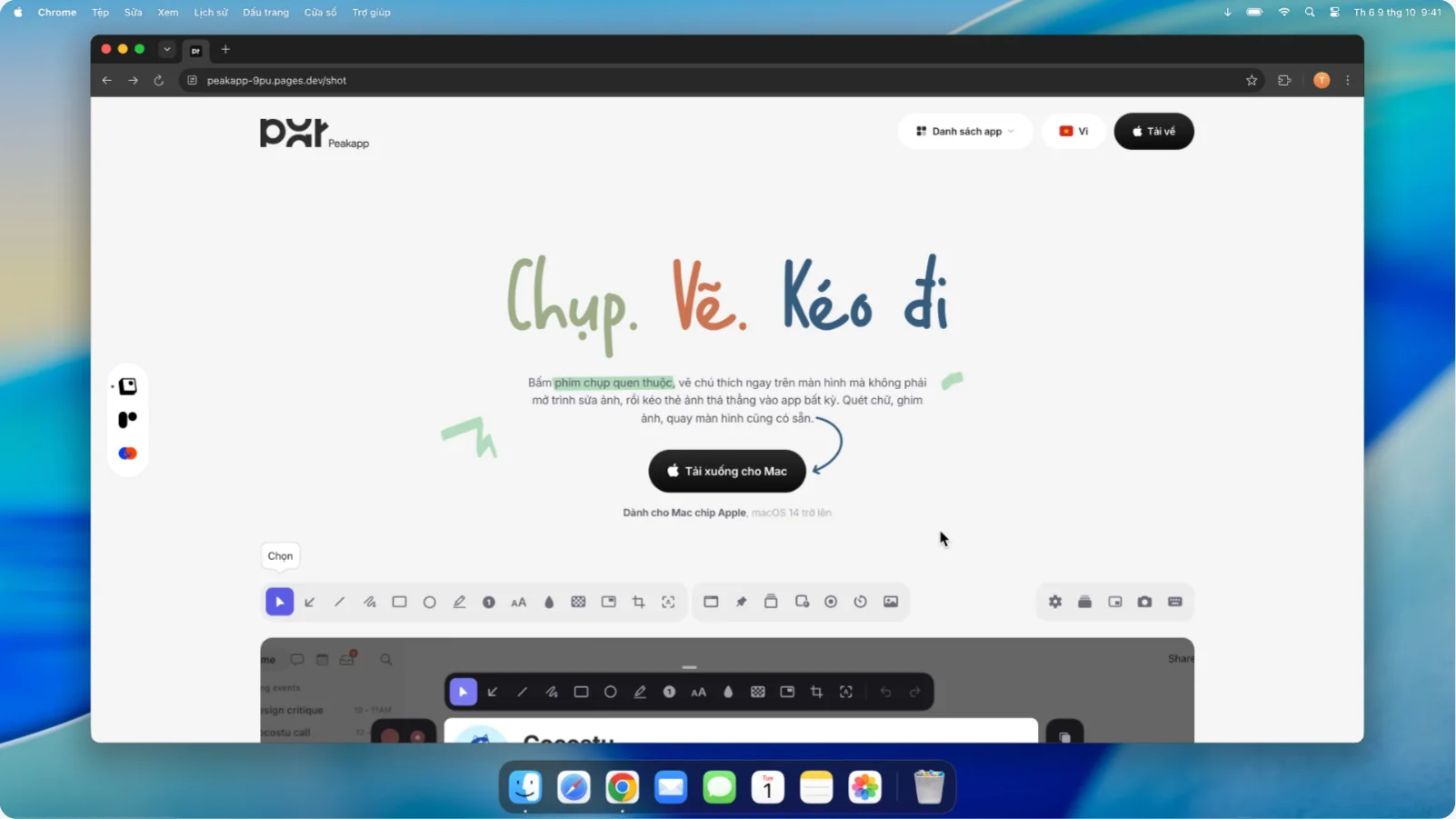
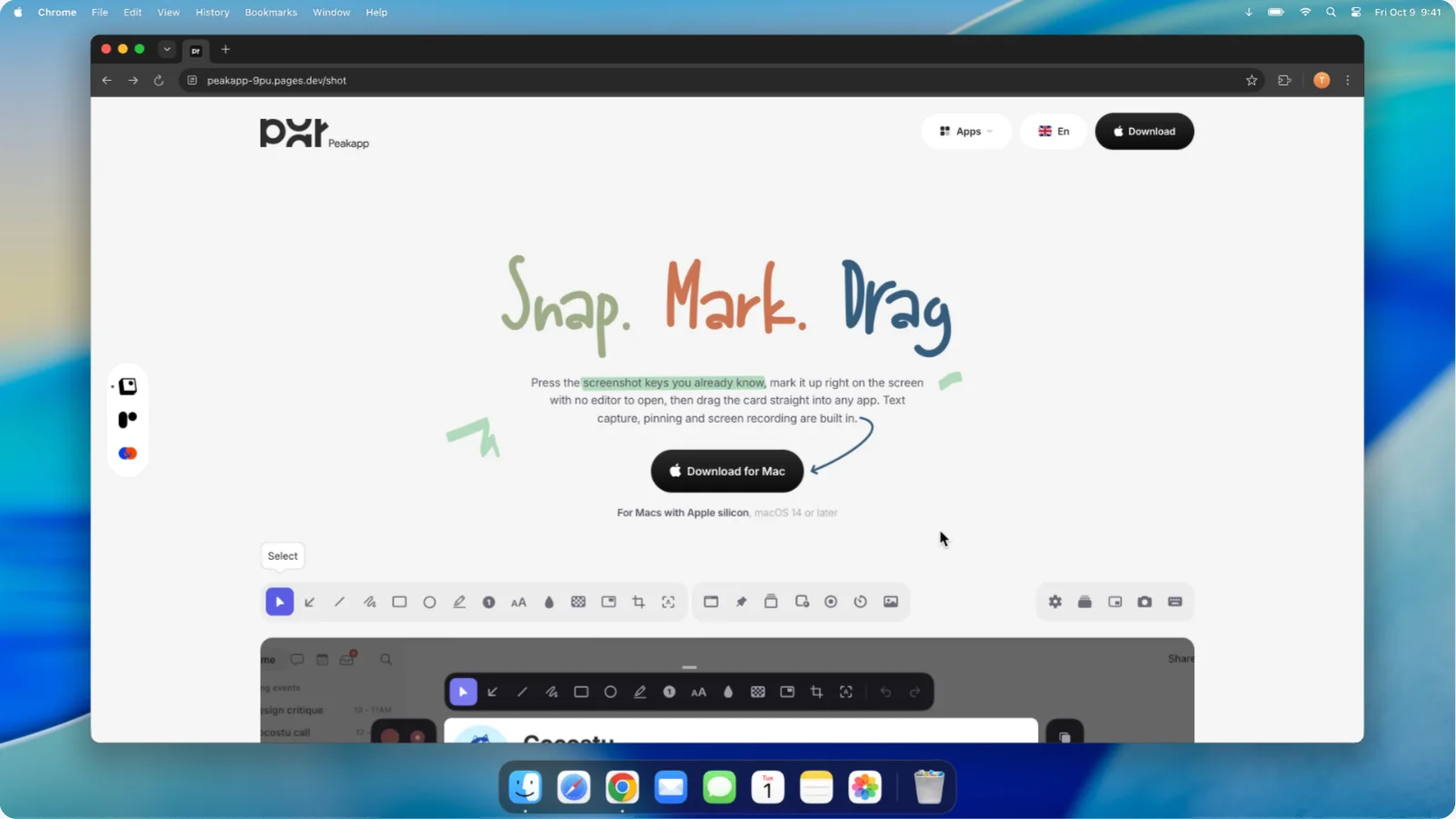
Press the screenshot keys you already know, mark it up right on the screen with no editor to open, then drag the card straight into any app. Text capture, pinning and screen recording are built in.
Apple silicon - runs on Macs with Apple's M chips, macOS 14 or later
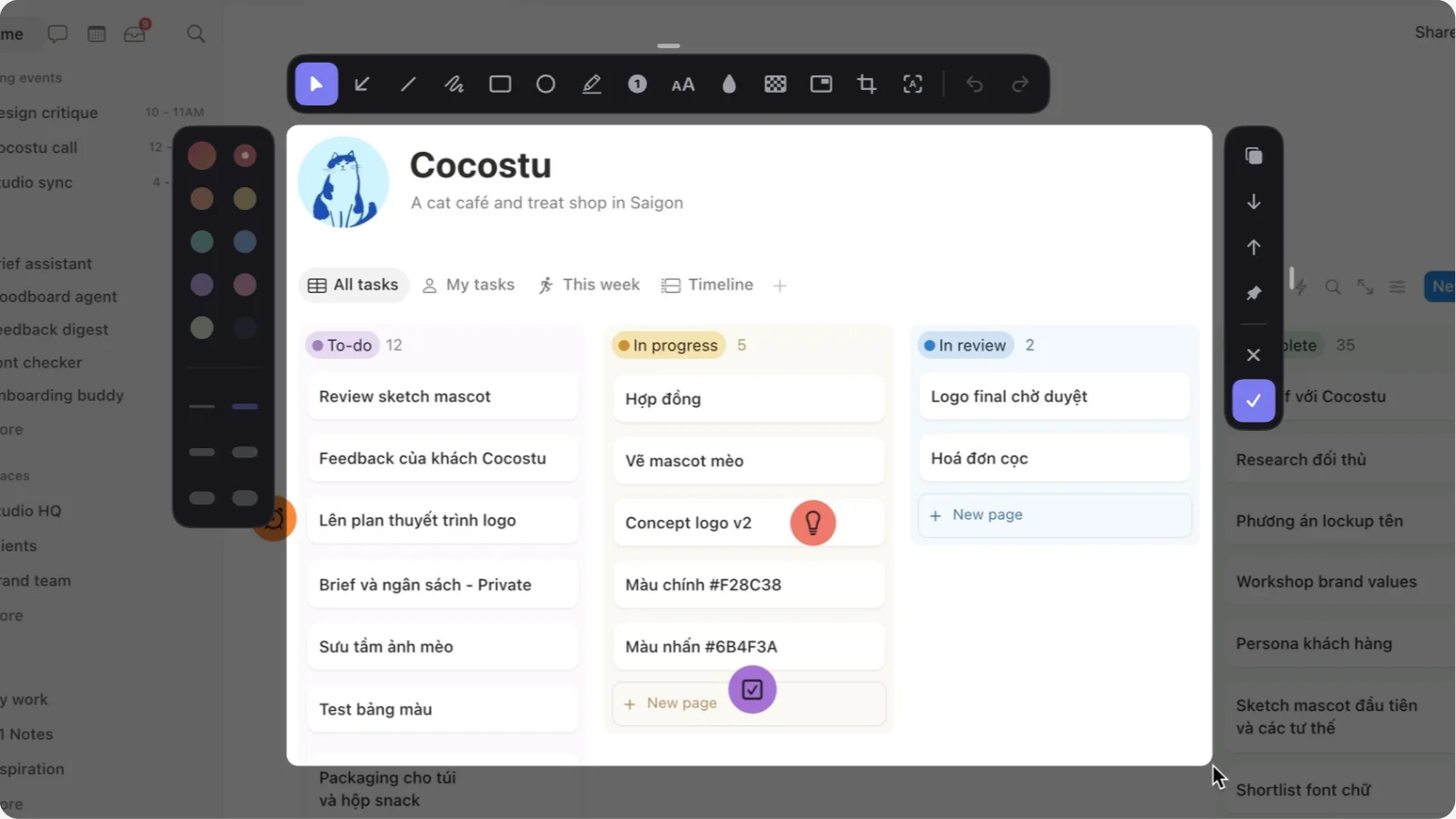
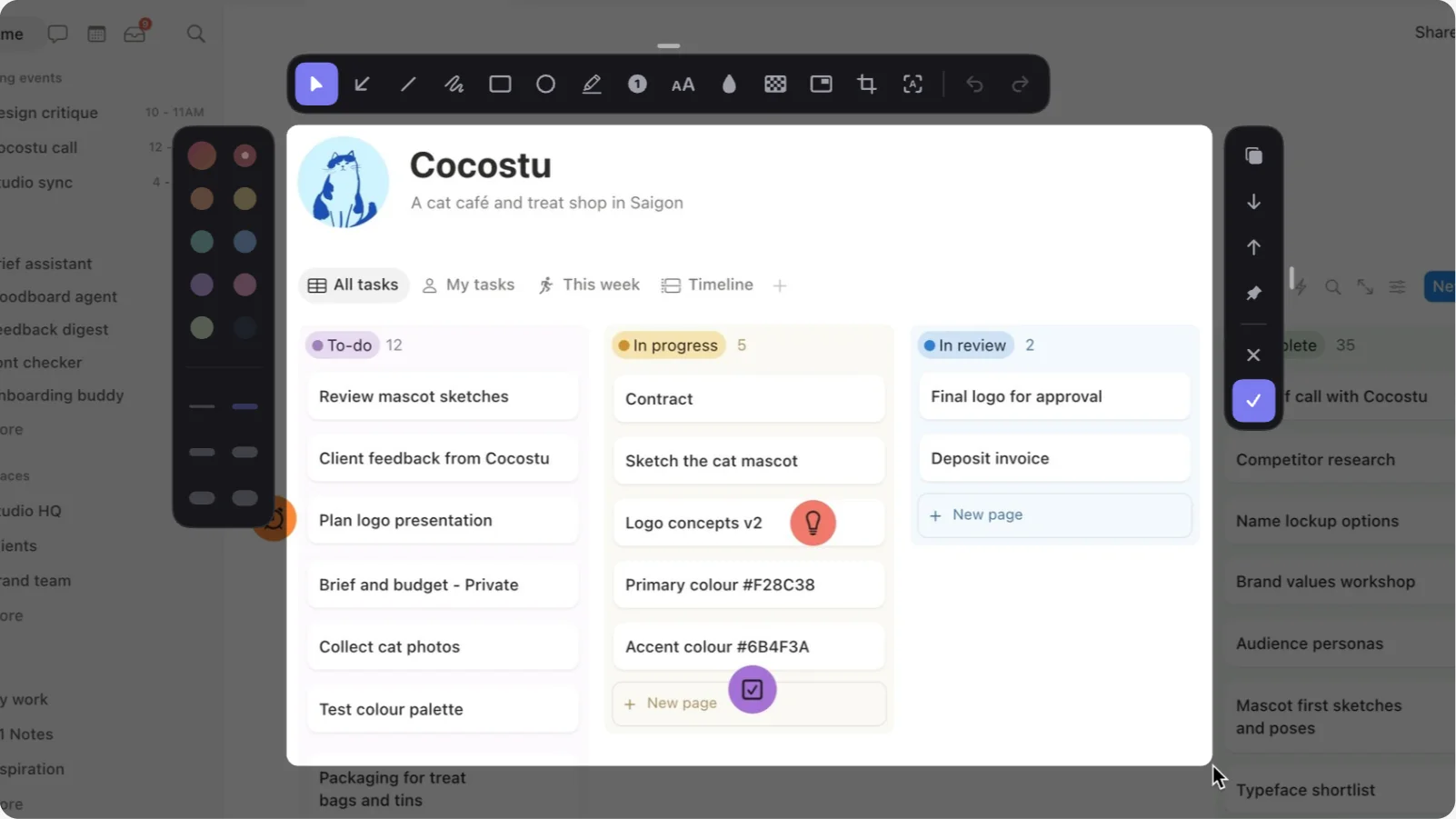
From key to card in a second.
Open it once
Shot sits in the menu bar, not the Dock. Allow Screen Recording when macOS asks, and that's all the setting up there is.
Press, then drag
⌃⇧1 for an area, ⌃⇧2 a window, ⌃⇧3 the whole screen. Or let Shot take over ⇧⌘3 and ⇧⌘4 in Settings.
Drag the card away
The shot is saved to your Desktop and already copied. A card shows in the corner: drag it into Zalo, Slack or Mail, or click to mark it up.
Text, video, history
⌃⇧6 copies the text from any part of the screen, ⌃⇧7 records it, ⌃⇧5 brings back what you took in the last 30 days.
Hover it. Peek it.
Peek turns your MacBook's notch into a Dynamic Island, like iPhone's: the song that's playing, charging, volume and brightness, and a shelf to hold files for a moment or send them by AirDrop.
Universal app - runs on both Apple silicon and Intel Macs, macOS 13 or later

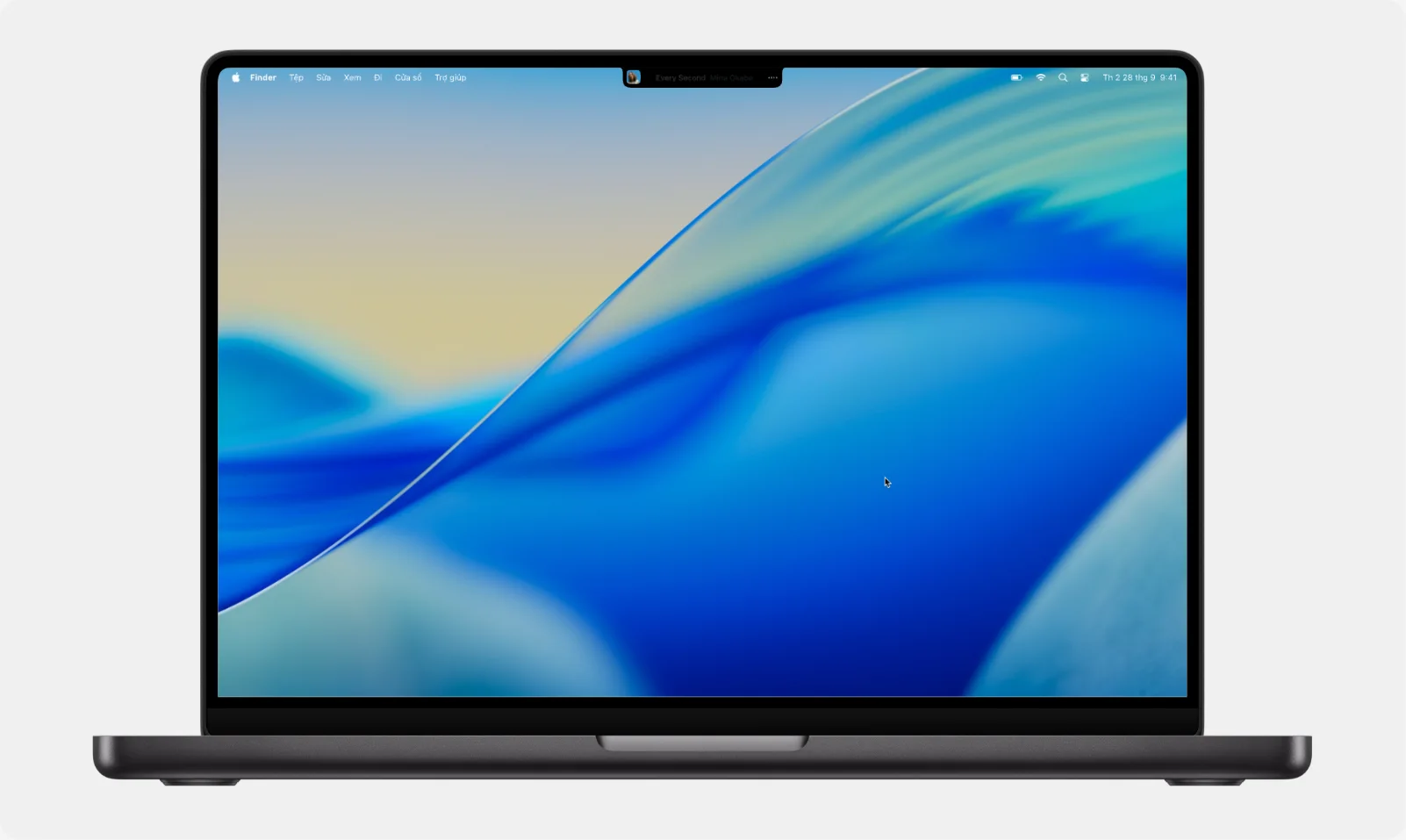
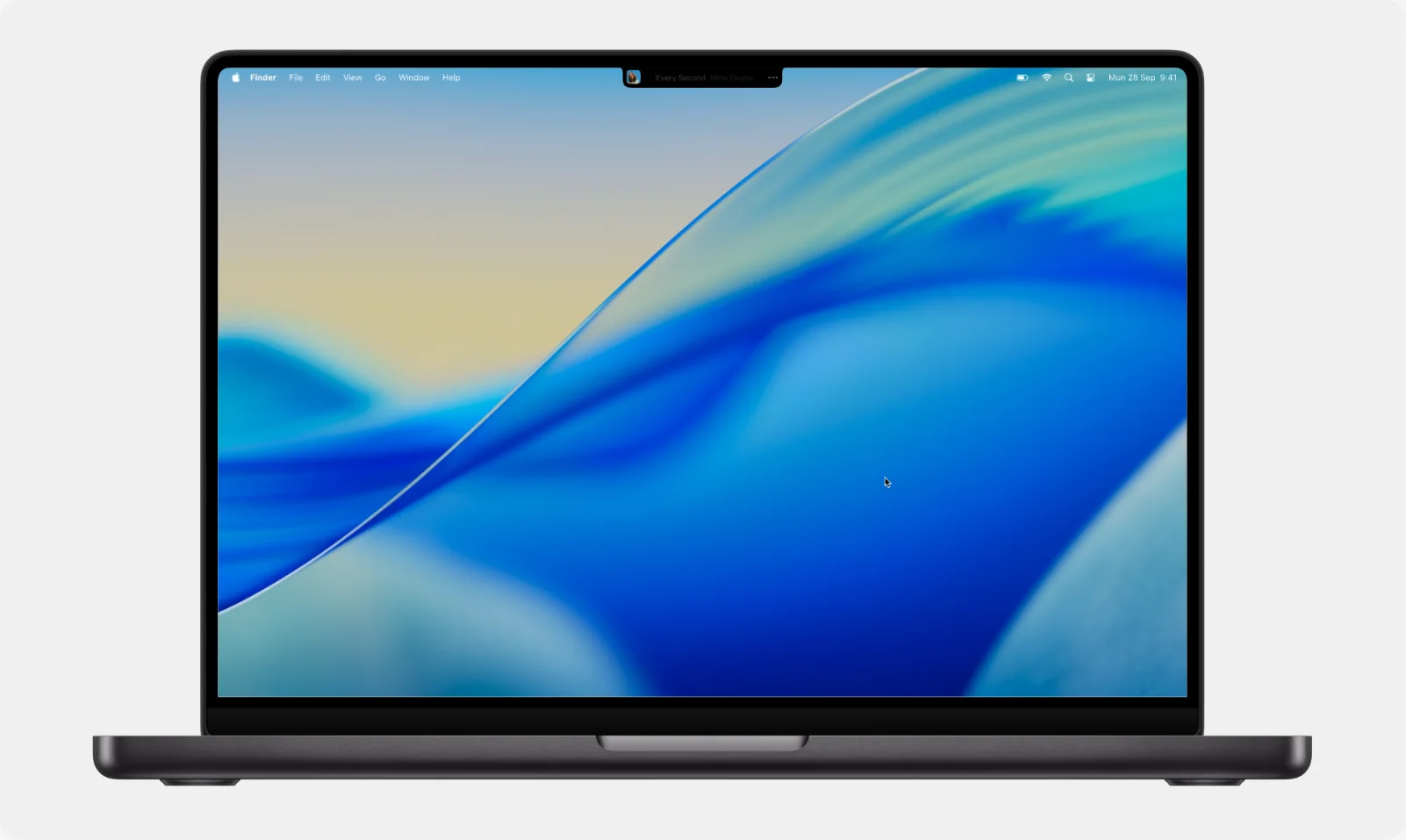
Your notch, put to work.
Point at the notch and what you need is there: your music, your files, your calendar, a timer and more.
Right in the notch.
Just point at the notch and the island opens. Move away and it tucks itself back. Peek takes no room in the Dock or the menu bar.
No notch? No problem.
Peek draws a slim bar at the top of the screen for you to point at. Or choose a flat edge that appears only when you need it.
Your music, from the notch.
Play, skip, scrub and pick a speaker or AirPlay, for Apple Music, Spotify and even YouTube in your browser. Click the song to go straight to the tab that's playing.
Keep files close. Or AirDrop them.
Drag files onto the notch to keep them close while you work on something else. When you're ready, drag them into any app, or AirDrop them with a single drop.
Clipboard history.
Peek remembers the last 50 pieces of text you copied. Click one to paste it right away. Passwords are never kept.
A calendar with notes for every day.
See the week ahead at a glance, or open the whole month. Add a note with a reminder, and never miss a birthday or a holiday, Lunar New Year included.
A reminder to drink water.
Peek reminds you to drink some water and stand up for a stretch, every hour. Choose the hours and how often.
Timer, Shazam and more.
Adjust volume and brightness with a slider. Set a timer with a note and watch it count down in the notch. Name a song with Shazam, turn on Do Not Disturb, or keep your Mac awake.
Time's up. Hard to miss.
When a timer ends, a large Time's up comes down across the top of your screen. Restart it or add 5 minutes with one click.
Alerts, right when they matter.
The notch lets you know when your Mac is charging, the battery runs low, your AirPods connect or a download finishes. Turn off any of them in Settings.
See it. Swoop it.
Swoop replaces your browser's default downloader, letting you grab videos and files from any website, including streaming platforms. Downloads open right away on your Mac, with no format headaches.
Universal app - runs on both Apple silicon and Intel Macs, macOS 14 or later
Click download. Swoop does the rest.
Add it to your browser
On first launch Swoop walks you through adding its extension to Chrome, Edge, Brave or Safari. After that it sits in the menu bar.
Download as you would
Press the ↓ Download button on a video, pick Swoop from the right-click menu, or paste a link. Members-only videos work too: Swoop uses your browser's sign-in.
Watch it come down
A small card in the corner shows each file's progress; pause or cancel it right there. Pick the quality once: the best there is, 1080p, or the sound alone.
It opens on your Mac
Files land in Downloads. A video QuickTime can't play is turned into H.265 on its way in, so a double-click opens it.
Type fast. Lose nothing.
A Vietnamese keyboard for macOS, made for Telex and made to be as steady as a keyboard can be. It sits in the menu bar and keeps itself up to date.
Universal app - runs on both Apple silicon and Intel Macs, macOS 13 or later
Fast, and not a letter lost
Every letter lands, however fast you type. In Spotlight and the browser's address bar, autocomplete no longer gets in the way of the word.
Tones wherever you like
tiengse gives tiếng, nguoiwf gives người. Quick Telex too: cc for ch, tt for th.
English stays English
with, coffee, boss come out as you typed them, with no tone marks slipped in.
Go back and fix a word
Delete the space to add a tone to the word you just typed, or click right after any word and type the tone.
Shortcuts that follow your caps
vn becomes Việt Nam, VN becomes VIỆT NAM. Bring your list over from UniKey or EVKey.
Each app the way it needs
Remembers Vietnamese or English for each app, keeps some always in English, and types VNI or TCVN3 for old fonts in Photoshop and AutoCAD.
A minute to set up. Then just type.
Allow Accessibility
HookType asks for Accessibility once, to read the keys you press. It picks the permission up by itself, and nothing you type leaves your Mac.
V or E in the menu bar
Click it, or press ⌃⇧, to switch between Vietnamese and English.
Type as you always have
Telex or VNI. HookType remembers the language for each app and leaves English words as you typed them.
Make it yours
Right-click the icon for Settings: shortcuts, VNI or TCVN3 for old fonts, apps that always type English. New versions come in by themselves.
Log spending in a second.
Say “200k for gas” and it’s logged. Scan a VietQR and it’s paid. Split bills with the family and Payso works out who owes whom. Your data stays in your iCloud, no ads.
iPhone - iOS 17 or later, in beta on TestFlight

Say it, scan it, split it.
Get it on TestFlight
Payso is in beta for iPhone, on iOS 17 or later. No account to make, no ads.
Say what you spent
“200k for gas”: Payso hears it on the iPhone, picks out the amount, the note and the category, and logs it.
Scan to pay
Scan the shop's VietQR and Payso opens your bank app, with who and how much already filled in for the banks that allow it, and logs the spend.
Split with the family
Invite them to a shared group through iCloud. Payso splits each bill and works out who owes whom; settle up by VietQR, on the phone or at peakapp.vn/pay/group.
Free for life
if you're early.
I built this app to sell, but I figure it's bound to still have flaws somewhere, so I'm keeping it free =)) When I run out of money and the app gets good, I'll start charging - go download it, you have to.
Grab it right now and it’s yours - the deal lasts until I run out of money. Be quick.
Get Swoop free- Yours for life - no payment, ever
- Every feature, unlocked forever
- All future updates included
Try everything before you decide - no strings attached.
Download the trial- No credit card, no account
- Everything a license unlocks
- Enter a key anytime to keep going